Open the Posting Screen and Statement screen:
Access a Guest's Stay information using the Modify Folio command, then access the Posting Screen and Statement screen using the Posting button (a gold coin  ):
):
Select Modify Folio from the Action Bar
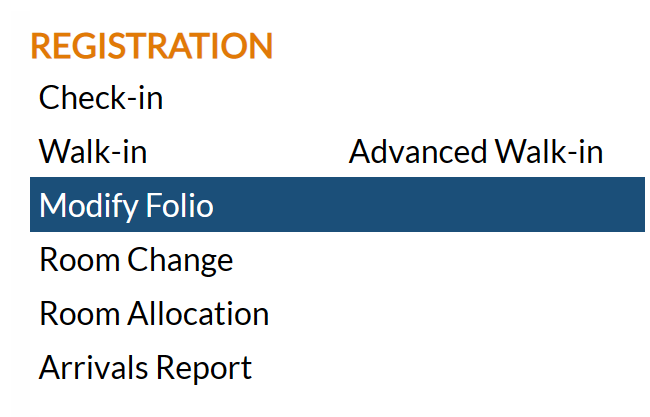
Note: In the NEW look for Skyware, the Action Bar appears slightly different but retains the Modify Folio button.
OR
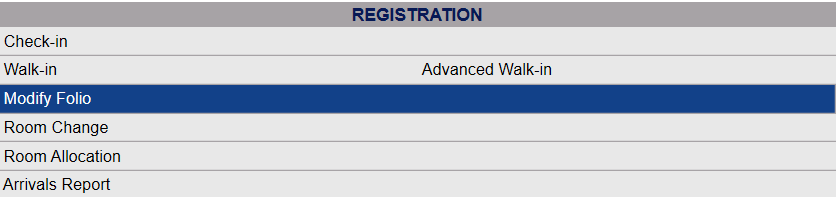
Click Modify Folio from the Registration section of the Full Menu.
To reach the Registration area:
Click the icon on the left for the Full menu.
 OR
OR
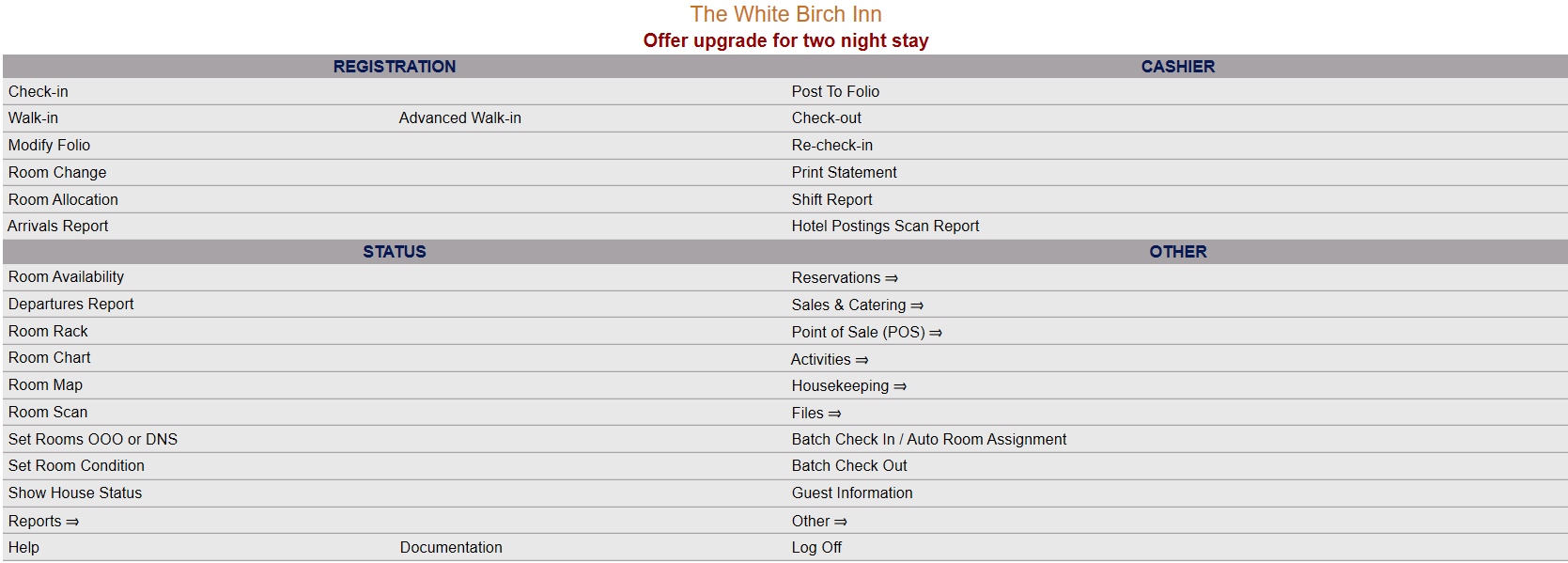
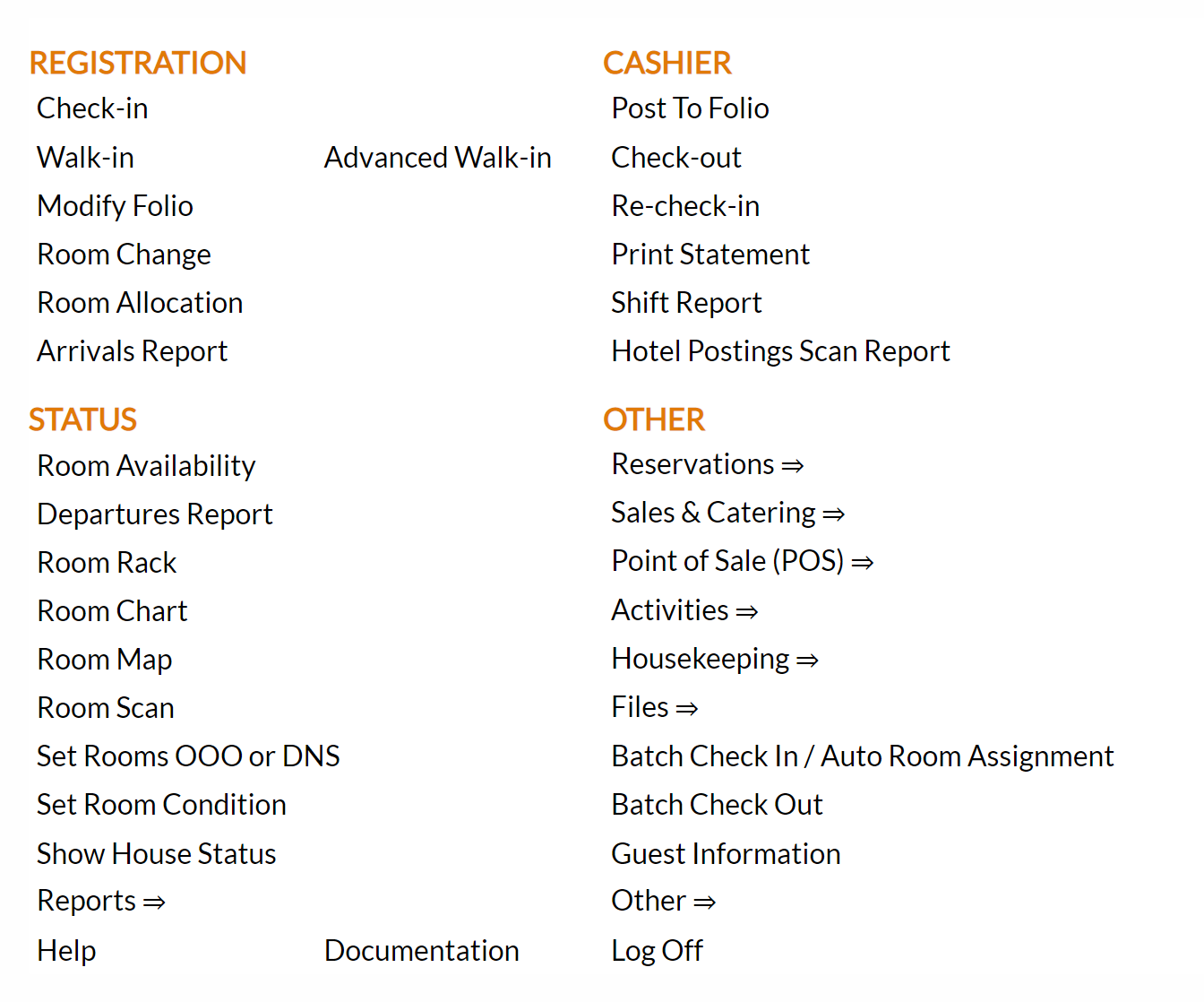
This will display the Full menu in a tabular form, with four sections, Registration, Status, Cashier and Other.
OR
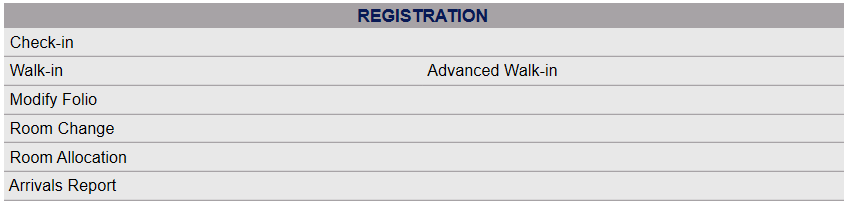
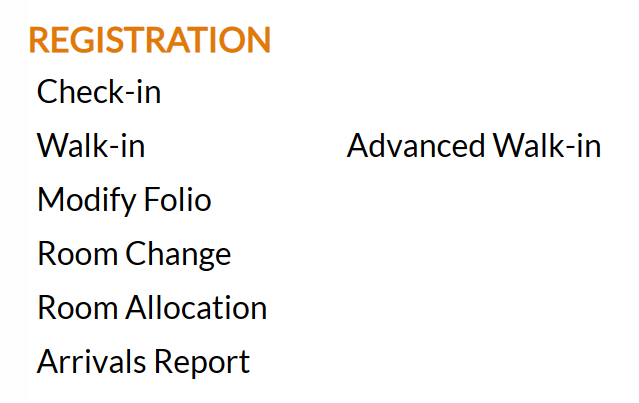
The section on the top left here is the Registration section.
OR
Click on Modify Folio.
OR
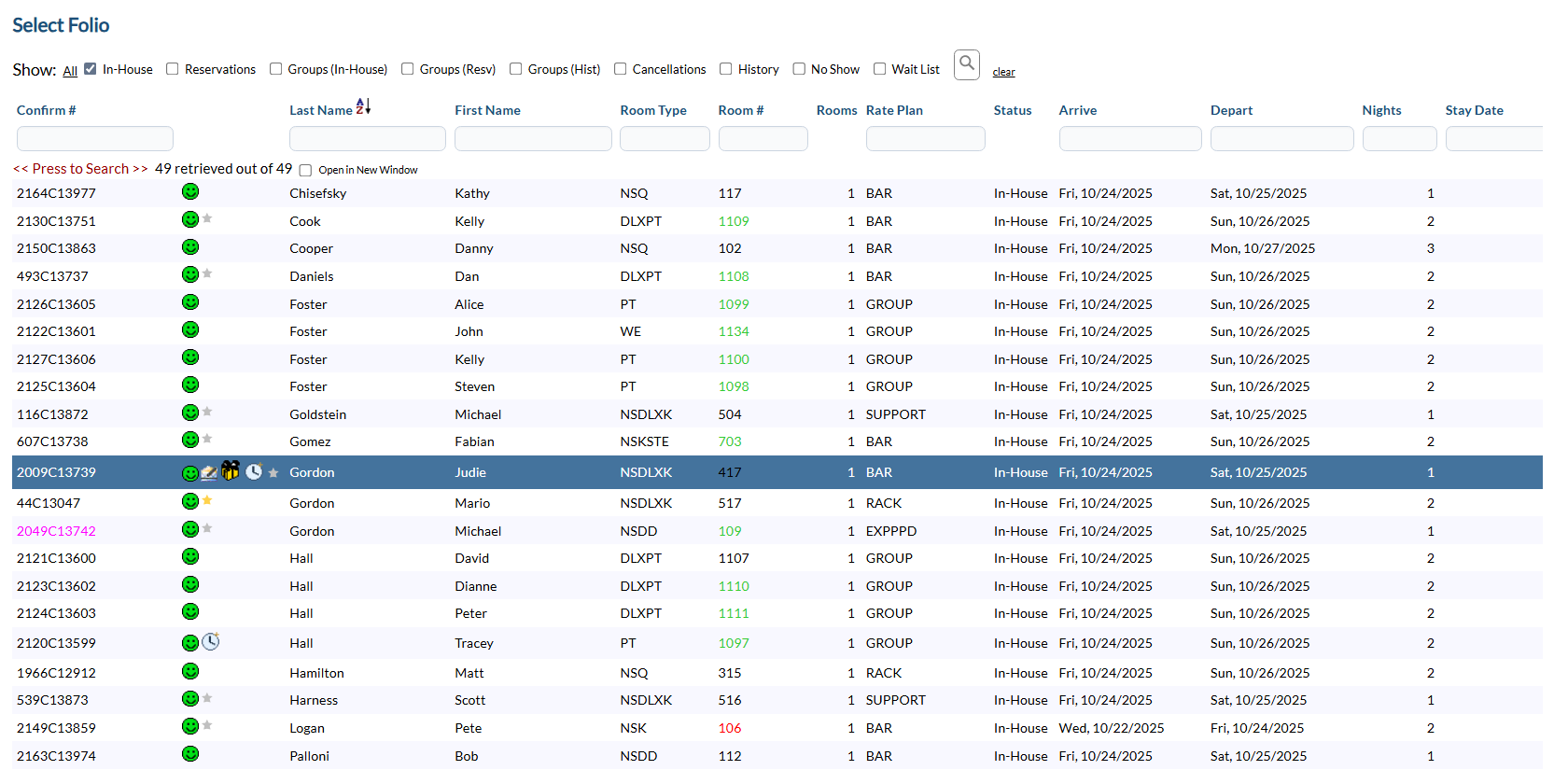
When you select Modify Folio, the Select Folio screen will open, allowing you to search for a Folio.
Currently the screen has no (Stay Information) Folios displayed. There are various options for you to select from. The default setting for the screen is to have the In-House option box checked. If the guest folio you wish to search for is in this group, you need only click the <<Press to Search>> link to activate the search.
Note: If the list provided is very large, use the search fields below your selection options to enter information and limit the search results. See Searching for Guests/Groups for more details. When entering information into the search fields, you do NOT need to hit return or enter - if you do so, this is the equivalent of clicking the <<Press to Search>> link and will generate the search.
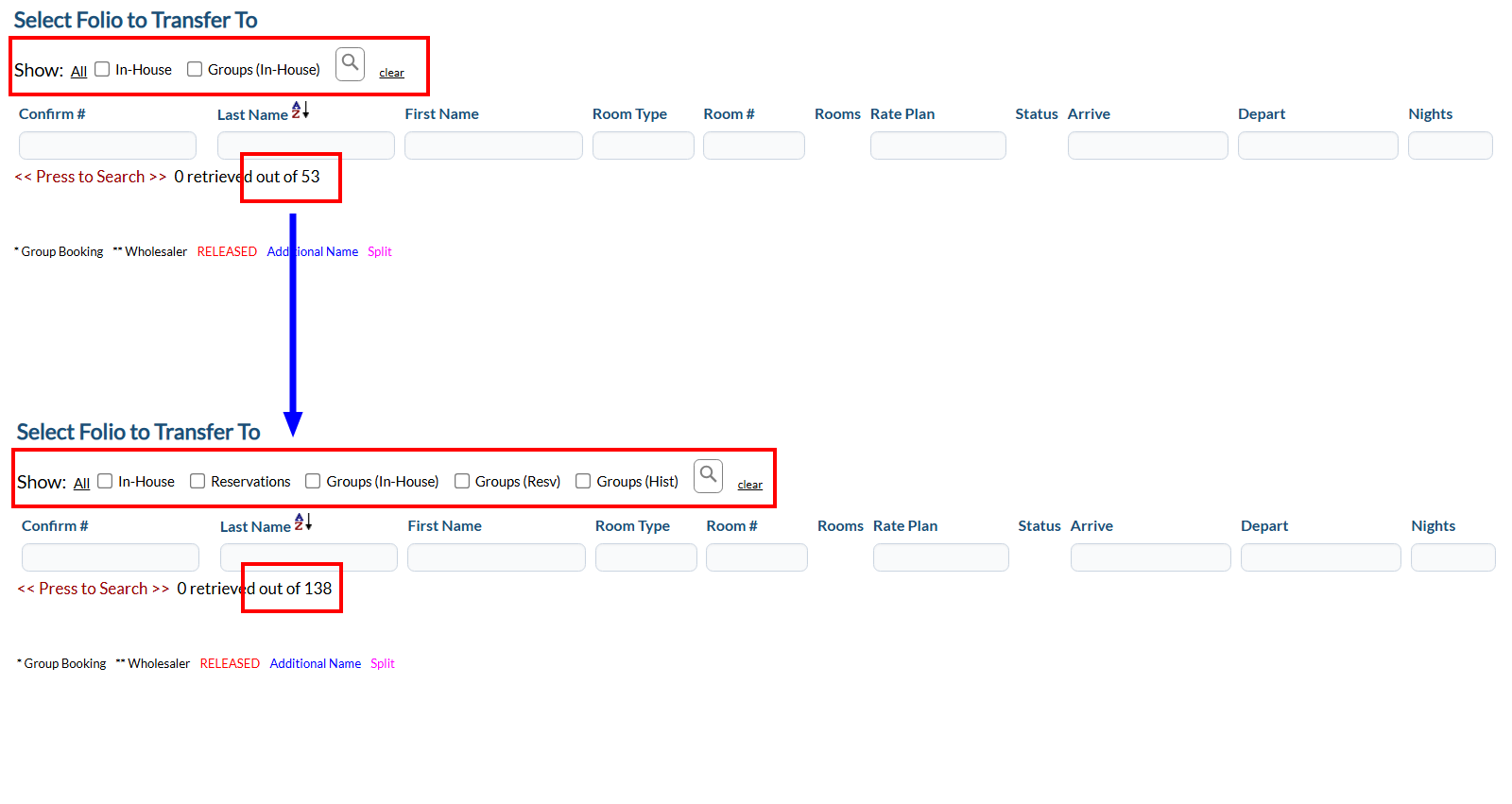
Note: In the NEW look for Skyware, the screen functionality has been changed slightly, in that the screen does NOT automatically update after changing any of the folio type options. A search icon has been added to the end of the list of options.
When using the NEW look, this icon should be clicked to update and display the list of Folios. This allows you to select multiple options at once, rather than having the screen update every time different options are selected.
From the search results, click the row of the guest folio to which you want to post to.
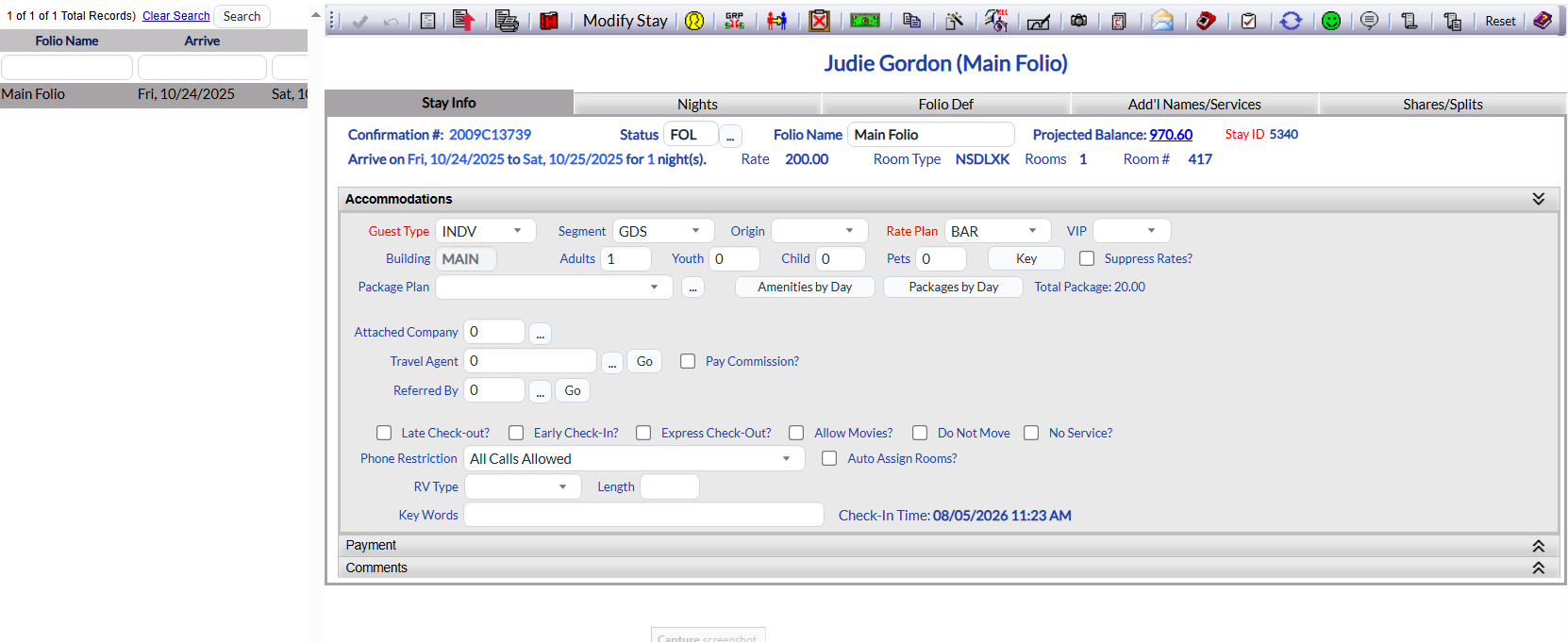
The selected Folio screen will open.
Click the Postings button (a gold coin, ) in the local tool bar of the main folio screen to open the Posting Screen and Statement screen for the folio.
Access the Posting Screen and Statement screen directly using the Post to Folio command:
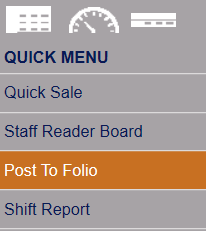
Select Post to Folio from the Quick Menu;
OR
OR
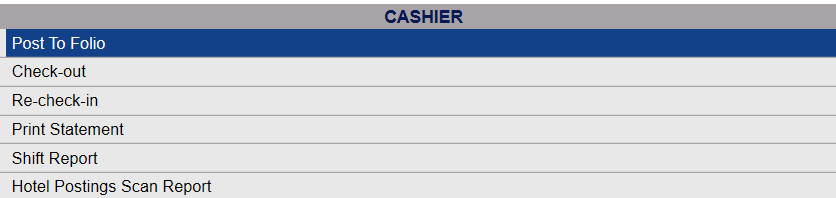
Select Post to Folio from the Cashier section of the Full Menu.
Selecting Post to Folio will open the Select Guest to add a Posting screen.
Currently the screen has no (Stay Information) Folios displayed. There are various options for you to select from. The default setting for the screen is to have the In-House option box checked. If the guest folio you wish to search for is in this group, you need only click the <<Press to Search>> link to activate the search.
Note: If the list provided is very large, use the search fields below your selection options to enter information and limit the search results. See Searching for Guests/Groups for more details. When entering information into the search fields, you do NOT need to hit return or enter - if you do so, this is the equivalent of clicking the <<Press to Search>> link and will generate the search.
Note: In the NEW look for Skyware, the screen functionality has been changed slightly, in that the screen does NOT automatically update after changing any of the folio type options. A search icon has been added to the end of the list of options.
When using the NEW look, this icon should be clicked to update and display the list of Folios. This allows you to select multiple options at once, rather than having the screen update every time different options are selected.
From the search results, click the row of the guest folio to which you want to post to.
This will directly open the Posting Screen and Statement screen for the folio (rather than the folio itself).
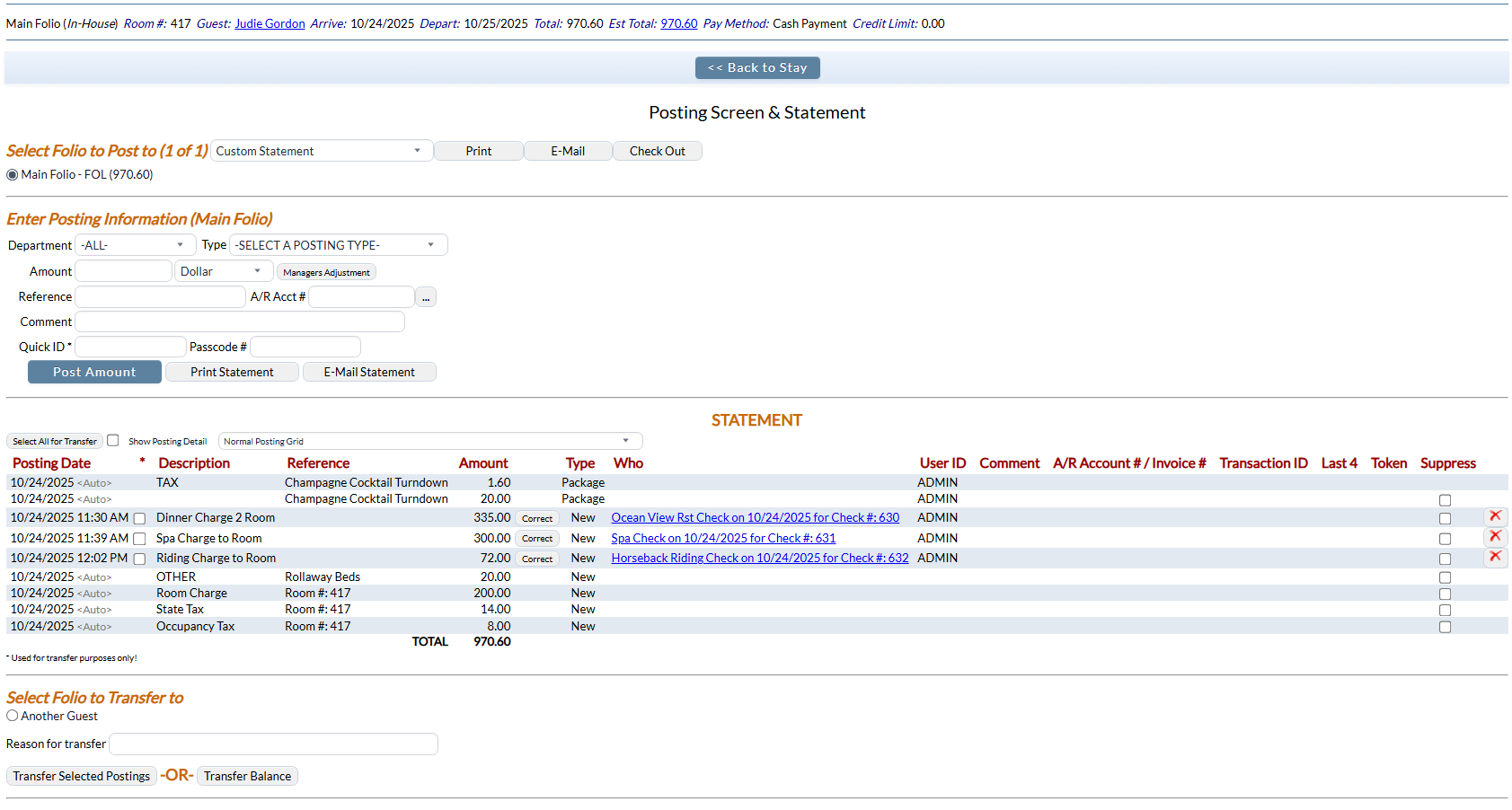
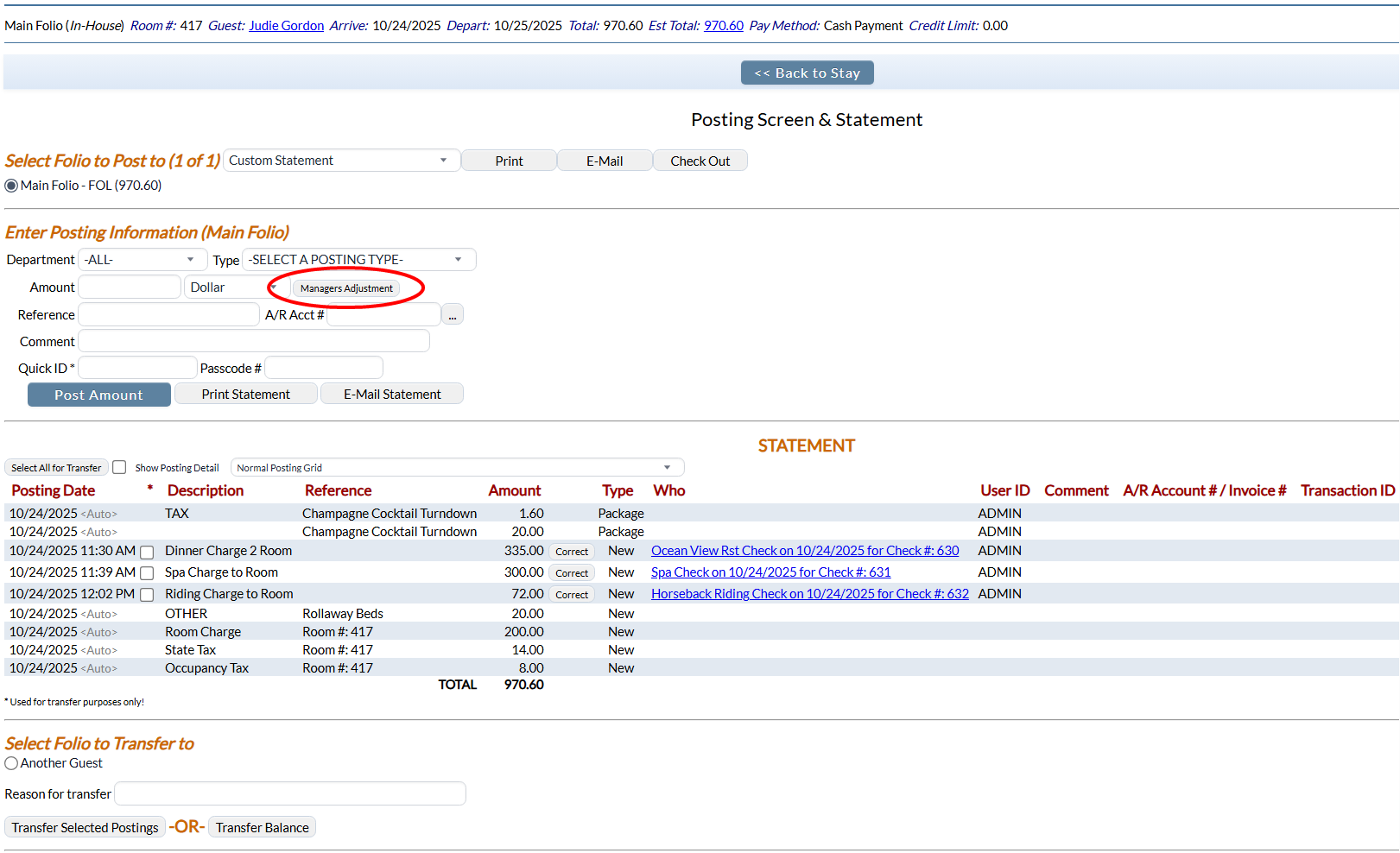
When opened, the Posting Screen and Statement screen for the selected folio will appear.
Postings may be transferred from one guest or folio to another. Any postings which may be transferred will have a check box in the Posting Statements table (section three) under the asterisk (*), between the Posting Date column and the Description column. Once transferred, the system will list the posting type as "Xfr" for "transfer" and show who the transfer went to/came from in the "Who" area.
To transfer a posting to another Folio, you will first need to select the posting in the Statement section (section 3). This is done using the check box shown between the Posting Date and Description columns (column marked with an asterisk).
Note: You may use the "Select All for Transfer" button at the top left of this section to automatically select all postings that may be transferred.
This will select all transferable postings, and the button will change to say "De-Select All".
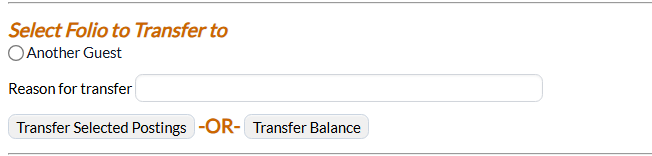
Once the correct posting(s) has been selected, you will now use the Transfer section (section 4).
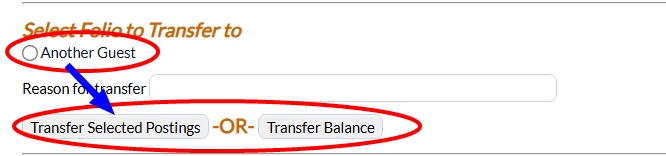
Click the "Another Guest" radial button (below the phrase "Select Folio to Transfer to") in section four to allow a transfer to be performed, and (optional, but preferred) complete the Reason for Transfer (type in why the postings are being transferred into the reason for transfer field).
Transfer postings to another folio using the Transfer Selected Postings button. You may also transfer all or partial balances by clicking the Transfer Balance button, where a pop up window with the amount will appear. If needed change the amount and click OK to close the window and continue.
This will take you to the Select Folio to Transfer to screen where you can search for the appropriate guest and select the guest's stay/folio that you wish to transfer the postings to.
Clicking on the guest will initiate the transfer.
Note: If the guest has more than one folio (will be shown in section one) and you wish to transfer charges from one folio to another, the folio numbers or name will appear in the transfer section, as well as the Another Guest radial button. Select the appropriate postings, click the folio to transfer the postings to and click Transfer Selected Postings
A pop up message telling you that the transfer has been successful will appear. Click "Ok" to return to the Posting Screen and Statement screen.
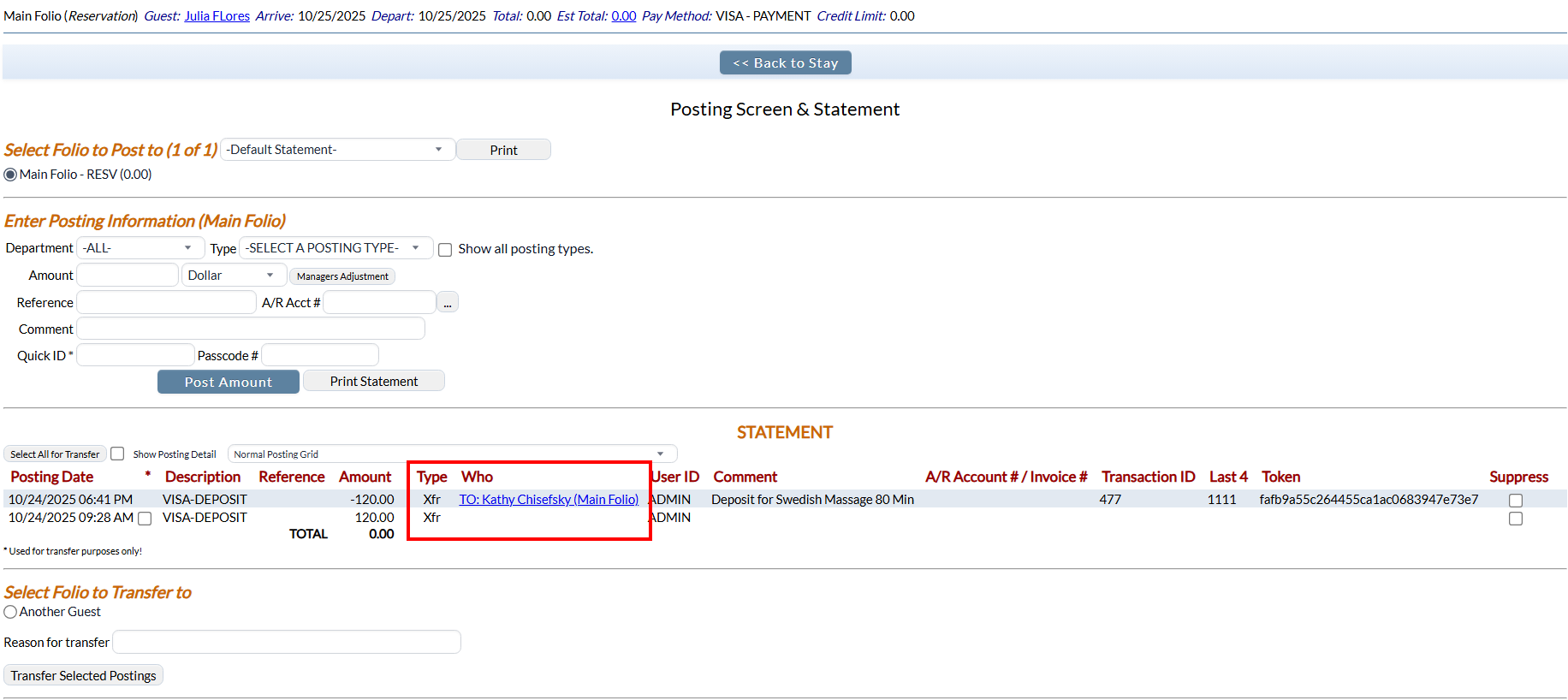
The Statement section (section three) will now show the transfer - under the column "Type" the Posting will be marked as "Xfr" for "transfer" and the column "Who" shows which guest/folio the transfer went TO.
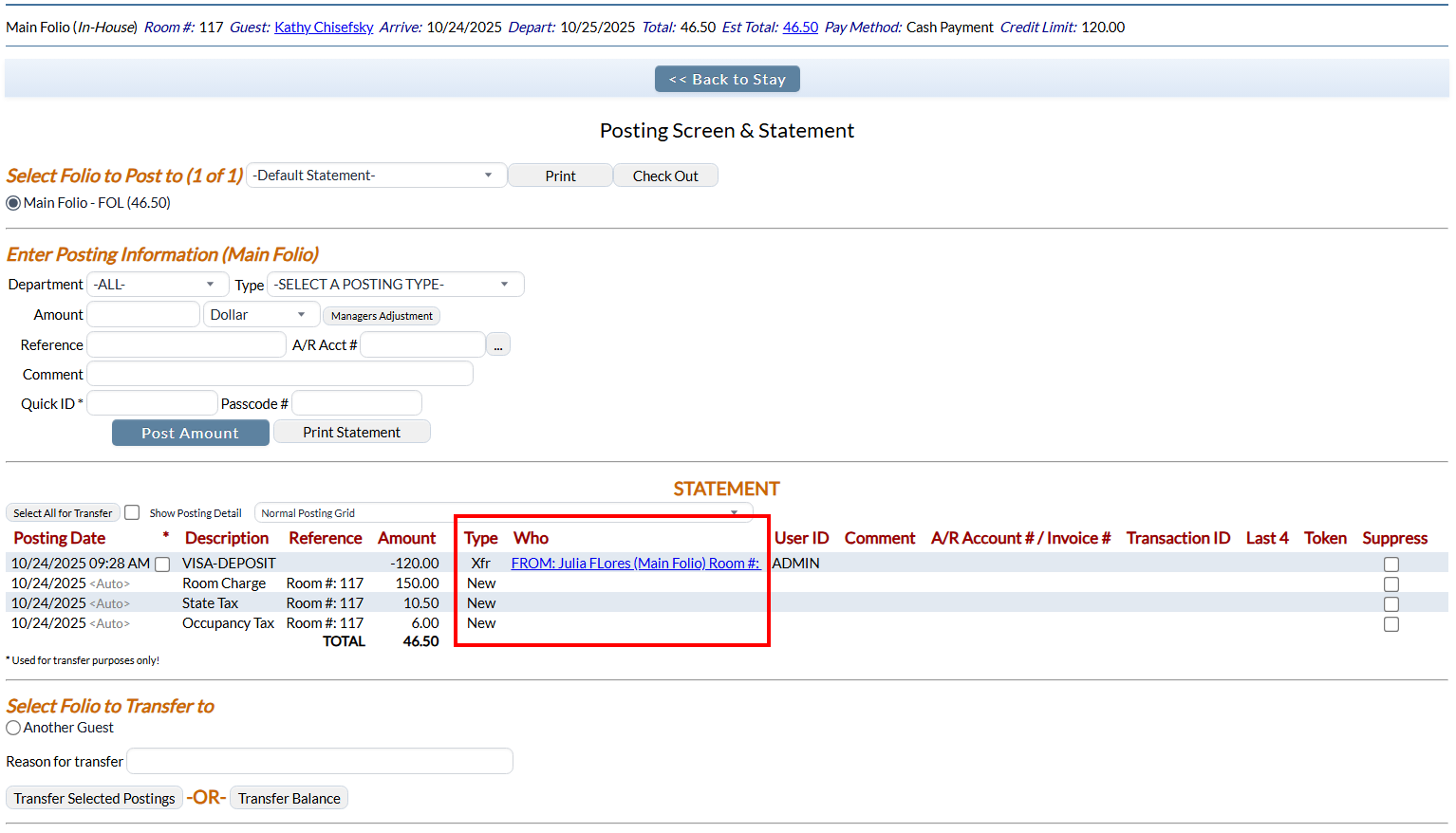
Note: The recipient may be clicked on to open the Posting Screen & Statement screen for the relevant folio; now the "Who" column will show FROM.